
Routines
Routine permissions
See who has access to a routine and share it with people or channels in Slack.
Default permissions
You own the routines you create. Who else can see them depends on where you create them:
- In a Slack channel: people in that channel get Read access by default.
- In a DM with OpenTag: only you have access, even if you ask the routine to post its results to a channel.
Only you can edit at first. Other people need you to grant them Edit access. Changing where results are posted does not change who has access to the routine.
See who has access
Open app.tryopentag.com → Routines, choose a routine, and look for Sharing. It shows the owner and which people or Slack channels have access. Only the owner can change sharing.
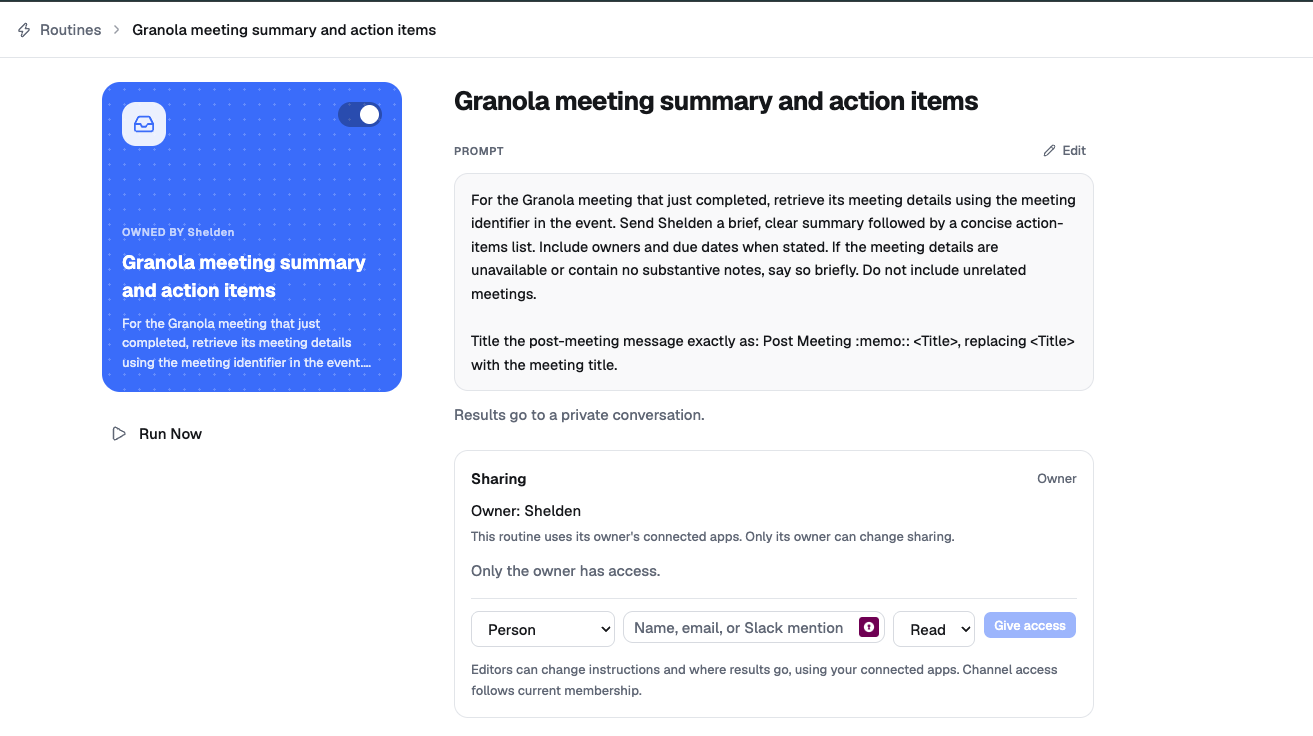
In this example, only Shelden has access. The controls below let the owner share the routine. View the screenshot at full size.
What each permission allows
| Permission | What you can do |
|---|---|
| Read | View the routine without changing it. |
| Edit | View the routine, change its instructions, and change where results go. |
| Owner | Edit the routine and manage who has access. |
The routine runs using its owner's connected apps, including when an editor changes its instructions. Give edit access to people you trust to direct that work.
Ask OpenTag to share it
If you own the routine, you can simply tell OpenTag in Slack to share access with a person or channel. Include the routine's name and the permission you want to give:
@OpenTag give @alex read access to my “Granola meeting summary and action items” routine.
@OpenTag share my “Weekly growth report” routine with #growth and give the channel edit access.
Channel access follows current Slack membership. People who join the channel gain that access; people who leave lose the access granted through that channel.
Share from the web app
As the owner, open the routine's Sharing section:
- Choose Person to share with a Slack user, or Channel to share with a Slack channel.
- Find the person by name, email, or Slack mention, or select the channel.
- Leave Read selected (the default), or choose Edit to let them change the routine.
- Click Give access.
If you need access to someone else's routine, ask its owner to share it with you. Having edit access does not let you grant access to other people.